Showing posts with label Halloween. Show all posts

Tuesday, 30 October 2012

"Creature Feature - Act Two" - Tutorial (PTU Kit)


This tutorial was written on Tuesday, October 30th 2012 by Mystery Designs. It was written in PSP X2 and assumes a good, working knowledge of the program. Any similarity to other tutorials is purely coincidental and not done intentionally. Please do not copy or claim the tutorial as your own. Please link to my blog should groups or forums use it in challenges, and please leave me a comment with a link to where it is being used. Thanks :)

**Supplies Needed**

Scrapkit - “Creature Feature” by Sleek N Sassy Designz HERE

Template - “Temp159” by Amy & Leah HERE

Masks - “WSL_Mask318” and “WSL_Mask362” by Weescotslass HERE


**Plugins**

VM Instant Art – Steel Mesh
VM Instant Art – Spider Web
Alien Skin Eyecandy – Gradient Glow


Open up the template
Shift+d to duplicate
Close the original

Image – Canvas Size – 650 x 550 pixels

Delete layer “credits-delete”

Unhide layer “bg” and rename “mask 1”

Grab your Floodfill tool, colour #73304d and fill layer “mask 1”

Layers – Load/Save Mask – Load Mask From Disk

Choose “WSL_Mask362” with these settings :
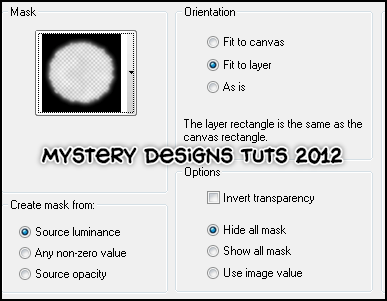


Layers – New Raster Layer and rename “mask 2”

Grab your Floodfill tool, colour #000000 and fill layer “mask 2”

Layers – Load/Save Mask – Load Mask From Disk

Choose “WSL_Mask318” with these settings :


Highlight layer “10”

Adjust – Brightness and Contrast – Brightness/Contrast

Brightness : -255
Contrast : 10

Adjust – Add/Remove Noise – Add Noise with these settings :


Add a drop shadow of choice

Highlight layer “9”

Adjust – Brightness and Contrast – Brightness/Contrast

Brightness : -255
Contrast : 10

Adjust – Add/Remove Noise – Add Noise with the same settings as before

Add a drop shadow of choice

Highlight layer “8”

Adjust – Add/Remove Noise – Add Noise with the same settings

Selections – Select All – Float – Defloat

Layers – New Raster Layer and rename “8a”

Selections – Modify – Contract – 8 pixels

Open up “CF_Paper7” from the kit and minimize it

Grab your Floodfill tool

Change your background to pattern and choose Paper 7

Floodfill the selection

Selections – None

Highlight layer “8” again

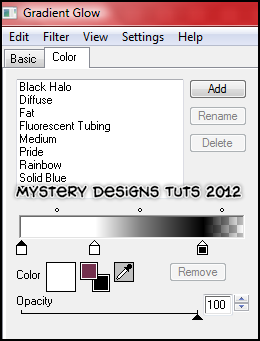
Effects – Alien Skin Eyecandy – Gradient Glow with these settings :


Add a drop shadow

Highlight layer “7”

Adjust – Brightness and Contrast – Brightness/Contrast

Brightness : -255
Contrast : 10

Adjust – Add/Remove Noise – Add Noise with the same settings as before

Selections – Select All – Float – Defloat

Layers – New Raster Layer and rename “7a”

Selections – Modify – Contract – 8 pixels

Open up “CF_Paper4” from the kit and minimize it

Grab your Floodfill tool

Change your background pattern to Paper4


Floodfill your selection

Selections – None

Highlight layer “7” again

Repeat the Gradient Glow and drop shadow from before


Highlight layer “6”

Adjust – Brightness and Contrast – Brightness/Contrast


Brightness : -255
Contrast : 10

Adjust – Add/Remove Noise – Add Noise with the same settings as before

Selections – Select All – Float – Defloat

Layers – New Raster Layer and rename “6a”

Selections – Modify – Contract – 8 pixels


Grab your Floodfill tool and fill with Paper4 again

Selections – None

Highlight layer “6”

Repeat the Gradient Glow and drop shadow from before

Highlight layer “5”

Adjust – Add/Remove Noise – Add Noise with the same settings as before


Add a drop shadow of choice

Highlight layer “4”

Adjust – Brightness and Contrast – Brightness/Contrast

Brightness : -255
Contrast : 10

Adjust – Add/Remove Noise – Add Noise with the previous settings

Selections – Select All – Float – Defloat

Selections – Modify – Contract – 8 pixels

Layers – New Raster Layer and rename “4a”

Grab your Floodfill tool again, still set on Paper4 and fill your selection

Selections – None

Highlight layer “4”

Repeat the Gradient Glow and drop shadow from above


Highlight layer “3”

Selections – Select All – Float – Defloat


Layers – New Raster Layer and rename “3a”

Grab your Floodfill tool

Change your foreground to #63243a and fill your selection


**Do Not Deselect**

Layers – Duplicate and rename “3aa”

Effects – VM Instant Art – Steel Mesh with the default settings :


Selections – None

Change the Blend Mode to “Overlay” and lower the Opacity to around 51

Highlight layer “3a” and add a drop shadow

Delete layer “3”


Highlight layer “2”

Adjust – Add/Remove Noise – Add Noise with the previous settings

Add a drop shadow

Highlight layer “1”

Selections – Select All – Float – Defloat

Layers – New Raster Layer and rename “1a”

Grab your Floodfill tool

Change your Foreground to #09676f, Background #7b3151

Background – Gradient – Foreground/Background with these settings :
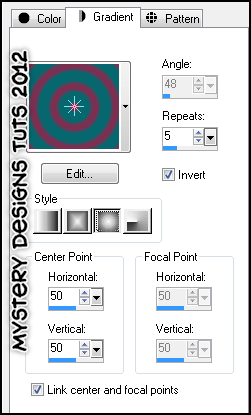


Floodfill your selection

Effects – VM Instant Art – Spider Web with the default settings :


Selections – None

Repeat the Gradient Glow and drop shadow from before

Delete layer “1”

Highlight layer “words 4 back”

Add a drop shadow

Highlight layer “words 4”

Selections – Select All – Float – Defloat


Layers – New Raster Layer and rename “words 4a”

Grab your Floodfill tool and fill your selection with the previous gradient

Selections – None

Delete layer “words 4”

Highlight layer “words 3 back” and add a drop shadow

Highlight layer “words 2 back” and add a drop shadow

Hightlight layer “words 2”

Adjust – Hue and Saturation – Colorize

Hue : 0
Saturation : 0

Adjust – Brightness and Contrast – Brightness/Contrast

Brightness : -93
Contrast : 10

Highlight layer “words 1 back” and add a drop shadow

Highlight layer “words 1”

Repeat the Hue and Saturation, as well as the Brightness and Contrast from the previous layer

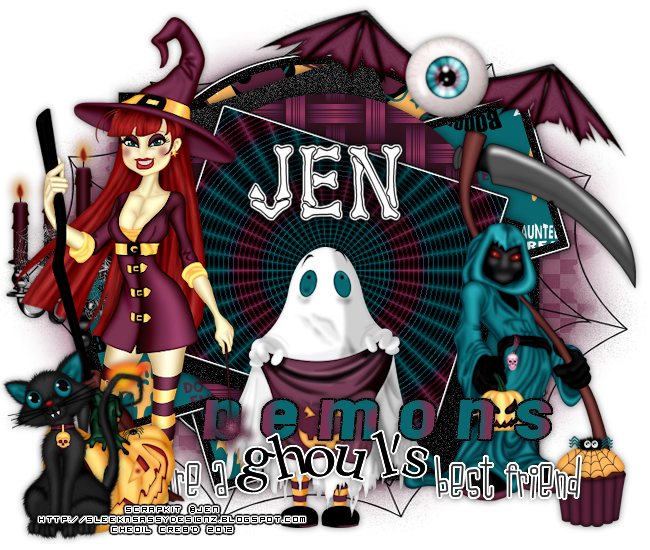
At this point, please feel free to add whichever elements from the kit you wish. My instructions below are simply guidelines on how to re-create the tag above :)

Open up “CF_Element17” from the kit

Copy – Paste – As New Layer and rename “witch”

Image – Resize – 85%

Arrange over on the left-hand side of your tag

Add a drop shadow of choice

Open up “CF_Element54” from the kit

Copy – Paste – As New Layer and rename “pumpkin”

Image – Resize – 35%

Arrange over on the bottom-left, by the feet of your witch

Add a drop shadow


Open up “CF_Element64” from the kit

Copy – Paste – As New Layer and rename “cat”

Image – Resize – 35%

Arrange over on the bottom-left by the pumpkin and witch

Add a drop shadow

Open up “CF_Element58” from the kit

Copy – Paste – As New Layer and rename “candles”


Image – Resize – 65%

Arrange over on the left-hand side of your tag, by the cat and witch

Add a drop shadow

Drag this layer down in your layer palette so that it is below your “witch” layer

Highlight layer “cat”

Open up “CF_Element55” from the kit

Copy – Paste – As New Layer and rename “bateye”

Image – Resize – 65%

Image – Free Rotate with these settings :


Arrange over on the top-right of your tag

Add a drop shadow

Open up “CF_Element45” from the kit

Copy – Paste – As New Layer and rename “ghost”

Image – Resize – 65%

Add a drop shadow

Arrange in the bottom-centre of your tag

Drag this layer so it is below layer “words 4 back” in your layer palette

Open up “CF_Element21” from the kit

Copy – Paste – As New Layer and rename “reaper”

Image – Resize – 65%

Image – Mirror

Add a drop shadow

Arrange over on the right-hand side of your tag

Open up “CF_Element34” from the kit

Copy – Paste – As New Layer and rename “cake”

Image – Resize – 35%

Add a drop shadow

Arrange over on the bottom-right of your tag

**If you would like to resize your tag, now is the time to do so**

Add your name and all copyrights.
Save your finished tag and you’re done!


"Creature Feature - Act One" - Tutorial (PTU Kit)


This tutorial was written on Tuesday, October 30th 2012 by Mystery Designs. It was written in PSP X2 and assumes a good, working knowledge of the program. Any similarity to other tutorials is purely coincidental and not done intentionally. Please do not copy or claim the tutorial as your own. Please link to my blog should groups or forums use it in challenges, and please leave me a comment with a link to where it is being used. Thanks :)


**Supplies Needed**

Scrapkit - “Creature Feature” by Sleek N Sassy Designz HERE

My Wordart – On my blog HERE

Mask - “zuzzanna_mask07” HERE


**Plugins**

Alien Skin Xenofex 2 – Little Fluffy Clouds


Open a new canvas 650 x 650 pixels

Rename layer “Raster 1” to “background”

Grab your Floodfill tool and fill this layer with white (#ffffff)


Layers – New Raster Layer and rename “mask”

Grab your Floodfill tool and fill this layer with black (#000000)

On your Materials Palette, change your Foreground to #d97d25 and your Background to #000000

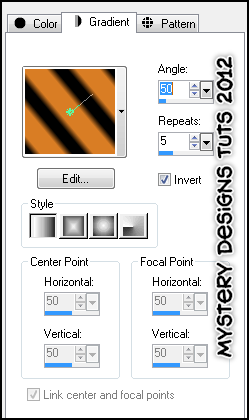
Change your foreground to Gradient – Foreground/Background with these settings :


Close off your Background palette

Grab your Preset Shape tool set on Elipse with the following settings :


Holding Shift, draw out a large circle (see my tag for guidance)

Objects – Align – Centre in Canvas

Layers – Convert to Raster Layer and rename “circle”

Selections – Select All – Float – Defloat

Effects – 3D Effects – Inner Bevel with the following settings :


Selections – None

Adjust – Add/Remove Noise – Add Noise with these settings :


Adjust – Sharpness – Sharpen

Grab your Magic Wand tool and select inside the circle

Selection – Modify – Expand – 4 pixels

Layers – New Raster Layer and rename “circle inner”

Grab your Floodfill tool and fill this layer with black (#000000)

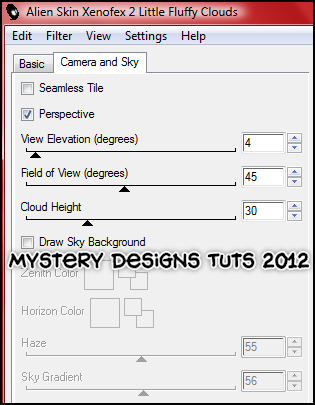
Effects – Alien Skin Xenofex 2 – Little Fluffy Clouds with these settings :


Selections - None

Layers – Arrange – Move Down

At this point, please feel free to add any elements you wish from this awesome kit. Below are suggestions only to re-create the tag above :)

Open up “CF_Element4” from the kit

Copy – Paste – As New Layer and rename “pumpkins”

Image – Free Rotate with the following settings :


Arrange over towards the top-left of your circle

Highlight layer “circle”

Grab your Magic Wand tool and select inside the circle again


Selections – Select All – Float – Defloat

Selections – Modify – Expand – 4 pixels


Selections – Invert

Highlight layer “pumpkins” and hit delete

Highlight layer “background”

Selection – Select All

Highlight layer “pumpkins” again

Image – Crop To Selection

Add a drop shadow of choice to your “pumpkins” and “circle” layers

Making sure layer “circle” is highlighted

Grab my wordart


Copy – Paste – As New Layer and rename “wordart”


Image – Resize – 75%

Arrange over on the top-left of your tag

Open up “CF_Element60” from the kit

Copy – Paste – As New Layer and rename “grave”

Image – Resize – 65%

Arrange along the bottom-centre of your circle


Add a drop shadow of choice


Open up “CF_Element58” from the kit

Copy – Paste – As New Layer and rename “candles”


Image – Resize – 55%

Arrange over to the right of the gravestone we just placed

Add a drop shadow of choice

Open up “CF_Element8” from the kit

Copy – Paste – As New Layer and rename “cauldron”


Image – Resize – 65%

Arrange to the left of the gravestone

Add a drop shadow of choice

Open up “CF_Element28” from the kit

Copy – Paste – As New Layer and rename “broom”


Image – Resize – 55%

Arrange over on the left by the cauldron we just placed

Add a drop shadow of choice

Open up “CF_Element65” from the kit

Copy – Paste – As New Layer and rename “books”


Image – Resize – 35%

Arrange along the bottom of your tag, on the other side of your cauldron

Add a drop shadow of choice

Open up “CF_Element9” from the kit

Copy – Paste – As New Layer and rename “witch”

Arrange over on the right-hand side of your tag

Add a drop shadow of choice

Open up “CF_Element29” from the kit

Copy – Paste – As New Layer and rename “bag”

Image – Resize – 20%


Arrange over on the right-hand side of your tag, by the witch's feet

Add a drop shadow of choice


Open up “CF_Element6” from the kit

Copy – Paste – As New Layer and rename “cat”


Image – Resize – 55%

Arrange over on the bottom-right again by your witch's feet


Add a drop shadow of choice


**If you would like to resize your tag, now is the time to do so**

Add your name and all copyrights.
Save your finished tag and you’re done!


Happy Halloween - Freebie Wordart

Hi peeps,

I am working on one or two Halloween tutorials which I will be posting later today.  Next month, I will also be getting caught up on several tutorials which I have had in the pipeline for a while, but haven't managed to get written up yet.  For now though, I have some Halloween wordart (which accompanies an upcoming tutorial).  Download is below the preview.  Enjoy! :)


Download HERE


Saturday, 20 October 2012

"Monster Boo" - (PTU)


This tutorial was written on Saturday, October 20th 2012 by Mystery Designs. It was written in PSP X2 and assumes a good, working knowledge of the program. Any similarity to other tutorials is purely coincidental and not done intentionally. Please do not copy or claim the tutorial as your own. Please link to my blog should groups or forums use it in challenges, and please leave me a comment with a link to where it is being used. Thanks :)

**Supplies Needed**

Tube of choice. I'm using the artwork of Arthur Crowe. You can purchase his tubes over at his store here

Kit of choice. I'm using the one which comes with Arthur's tube, and can also be purchased over at his store

Template of choice. I'm using one by Addictive Addicts (APHWNtemplate2) which you can download here

Mask of choice. The one I'm using is by Vix (Vix_BigMask019) and you can download it here

**Plugins**

Xero – Artworx

Ready? Lets begin :)

Open up your tube
Shift+d to duplicate
Close the original

Open up the template
Shift+d to duplicate
Close the original

Still on template, delete the “info”, “words” and “raster 1” layers

Image – Canvas Size – 650x650 pixels

Open up “EAS_Paper5” from the kit
Minimize it for the moment

Back on the template
Highlight layer “thin rectangle3”

Adjust – Brightness & Contrast – Brightness/Contrast

Brightness : -255
Contrast : 0

Selection – Select All – Float – Defloat
Selections – Modify – Contract – 10 pixels

Layers – New Raster Layer – rename “thin rectangle3a”

Grab your Floodfill tool
Change the background fill to pattern

Select the paper we minimized earlier

Angle : 0
Scale : 77

Fill the selection
Deselect

Highlight layer “thin rectangle2”

Adjust – Brightness & Contrast – Brightness/Contrast

Brightness : -255
Contrast : 0

Selections – Select All – Float – Defloat
Selections – Modify – Contract – 10 pixels

Layers – New Raster Layer – rename “thin rectangle2a”

Fill the selection again using the paper and settings from before and deselect

Highlight layer “thin rectangle1”

Adjust – Brightness & Contrast – Brightness/Contrast

Brightness : -255
Contrast : 0

Selections – Select All – Float – Defloat
Selections – Modify – Contract – 7 pixels

Layers – New Raster Layer – rename “thin rectangle1a”

Fill once more with the paper and settings from before and deselect

Highlight layer “large rectangle”

Adjust – Brightness & Contrast – Brightness/Contrast

Brightness : -255
Contrast : 0

Adjust – Add/Remove Noise – Add Noise

Gaussian – Mono – 100%


Adjust – Sharpness – Sharpen


Selections – Select All – Float – Defloat
Selections – Modify – Contract – 4 pixels

Layers – New Raster Layer – rename “large rectangle 1”

Grab your Floodfill tool again

Change your Foreground and Background to two complimentary colours from your tube/tag. I am using #b1df78 and #cf83de


Change your Background to Gradient – Foreground/Background with these settings :


Floodfill your selection

**Do Not Deselect**

Effects – Plugins – Xero – Artworx – Diamonds

Use the default settings :


Grab your tube

Copy – Paste – As New Layer – Rename “Close Up”

Arrange over your selection

Selections – Invert – Delete

Selections – Select All
Image – Crop To Selection

Change the Blend Mode of your close up layer to “Hard Light” and lower the opacity to around 56

Layers – Duplicate – Rename “Close Upa”

Change the Blend Mode to “Overlay”

Highlight layer “boo”

Adjust – Brightness & Contrast – Brightness/Contrast

Brightness : -255
Contrast : 0

Selections – Select All – Float – Defloat
Selections – Modify – Contract – 4 pixels

Layers – New Raster Layer – Rename “boo1”

Grab your Floodfill tool again


Change the Background back to Pattern with the same paper and settings from earlier


Deselect

Add a drop shadow of choice to the following layers :

thin rectangle3
thin rectangle2
thin rectangle1
large rectangle
boo

Make sure layer “boo1” is highlighted

Grab your tube again

Copy – Paste – As New Layer – Rename “Main Tube”

Arrange over on the left-hand side of your tag and add a drop shadow of choice then hide the layer for the moment

Open up “EAS_WeirdSwirlie” from the kit

Copy – Paste – As New Layer – Rename “Swirl”

Image – Resize – 70%

Arrange over on the left-hand side of your tag like so :


Layers – Duplicate – Rename “Swirl1”

Image – Mirror

Layers – Merge – Merge Down

Layers – Arrange – Send To Bottom


Add a drop shadow of choice


Unhide your “Main Tube” layer

Reposition the swirl if need be

Highlight your “Main Tube” layer

Open up “EAS_WingedSkull” from the kit

Copy – Paste – As New Layer – Rename “Winged1”

Image – Resize – 55%

Image – Free Rotate with the following settings :


Arrange over on the bottom-right of your tag

Layers – Duplicate – Rename “Winged2”

Image – Mirror

Image – Resize – 75%

Arrange over on the top-left of your tag

Once happy with both skull positions

Layers – Merge – Merge Down


Add a drop shadow of choice


Open up “EAS_Pumpkins” from the kit

Copy – Paste – As New Layer – Rename “Pumpkins”

Image – Resize – 65%

Arrange down on the bottom-left of your tag by your tube

Add a drop shadow of choice

Open up “EAS_BlackCat” from the kit

Copy – Paste – As New Layer – Rename “Cat”

Image – Resize – 45%


Arrange again over on the bottom-left of your tag by your tube and pumpkins


Add a drop shadow of choice


Layers – New Raster Layer – Rename “Mask”


Grab your Floodfill tool

Change your Foreground to a complimentary colour from your tag. I am using #8c4b9a


Floodfill your “Mask” layer

Layers – Load/Save Mask – Load Mask From Disk

Choose “Vix_BigMask019” with these settings :


Layers – Arrange – Send To Bottom

Highlight layer “Swirl”

Change the Blend Mode to “Hard Light”

**If you would like to resize your tag, now is the time to do so**

Add your name and all copyrights.
Save your finished tag and you’re done!