AR development in Unity
Get started with augmented reality development in Unity.
Augmented Reality (AR) involves a different set of design challenges compared to VR or traditional real-time 3D applications. An augmented reality app overlays its content on the real world around the user. AR devices, such as glasses, visors, or mobile devices, use transparent displays to allow the user to see the real-world with virtual content overlaid on top.
To place an object in the real world, you must first determine where to place it. For example, you might want to place a virtual painting on a physical wall. If you place a virtual potted plant, you might want it on a physical table or the floor. An AR app receives information about the world from the user’s device, and decides how to use this information to create a good experience for the user. Depending on target device capabilities, this information includes location of planar surfaces (planes), and the detection of objects, people, and faces.
The following sections provide an overview of an AR scene, the AR packages, and AR Template you can use to develop AR applications in Unity.
Introduction to an AR scene
When you open a typical AR scene in Unity, you will not find many 3D objects in the Scene or the Hierarchy view. Instead, most GameObjects in the scene define the settings and logic of the app. 3D content is typically created as prefabs that are added to the scene at runtime in response to AR-related events.
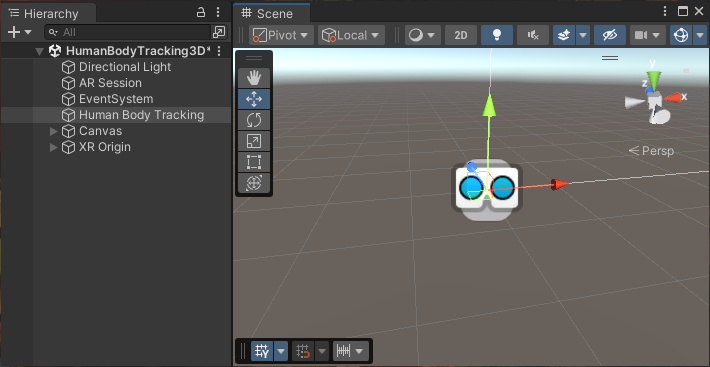
A typical AR scene in the Unity Editor.
AR scene elements
The following sections outline the Required scene elements to make AR work, and the Optional scene elements you can add to enable specific AR features. To learn more about how to configure an XR scene Set up an XR scene.
Note: AR GameObjects appear in the create menu when you enable an AR provider plug-in in XR Plug-in Management.
Required scene elements
An AR scene must contain the AR Session and XR Origin GameObjects. The available options for the XR Origin depends on the packages you’ve installed in your project. AR Foundation uses the Mobile AR and XR Interaction Toolkit uses the AR variant.
If you start your project from an AR template, these components will come configured in the scene.
To manually add the relevant XR Origin and AR Session GameObjects:
- Right-click in the Hierarchy window.
- Go to GameObject > XR.
- Select the relevant component.
Note: You must only have one active XR Origin in a scene.
AR Session
The AR Session GameObject contains the components you need to control the lifecycle and input of AR experience:
XR Origin (Mobile AR)
The XR Origin (Mobile AR) GameObject is a variant of the XR Origin for hand-held AR applications. This variant isn’t configured for controller input by default. This version of the XR Origin is used by AR Foundation.
The XR Origin (Mobile AR) GameObject consists of the following components:
- XR Origin component
- Camera Offset GameObject:
For more information, refer to AR Foundation Set up your scene and Device tracking.
Optional scene elements
To enable an AR feature, you must add the corresponding components to your project. Typically, this includes an AR Manager, but other features might also require additional components.
To learn more about the required components for AR Foundation features, refer to the documentation for the relevant AR Foundation Feature. For more in-depth information about setting up your AR Foundation app, visit Scene set up.
AR packages
To build AR apps in Unity, you can install the AR Foundation package along with the XR provider plug-ins for the devices you want to support.
To develop AR/MR apps for the Apple Vision Pro device, you also need the PolySpatial visionOS packages. Unity provides additional packages, including the XR Interaction Toolkit to make it easier and faster to develop AR experiences.
AR provider plug-ins
AR platforms are available as provider plug-ins by the XR Plug-in Management system. To understand how to use the XR Plug-in Management system to add and enable provider plug-ins for your target platforms, refer to XR Project set up.
The AR provider plug-ins supported by Unity include:
| Plug-in | Supported devices |
|---|---|
| Apple ARKit XR Plug-in | iOS |
| Apple visionOS XR Plug-in | visionOS |
| Google ARCore XR Plug-in | Android |
| OpenXR Plug-in | Devices with an OpenXR runtime |
Note: Depending on the platform or device, you might need to install additional packages along with OpenXR. For example, to build an AR app for HoloLens 2, you must install the Microsoft’s Mixed Reality OpenXR Plugin.
AR Foundation
The AR Foundation package supports AR development in Unity.
AR Foundation enables you to create multiplatform AR apps with Unity. In an AR Foundation project, you choose which AR features to enable by adding the corresponding manager components to your scene. When you build and run your app on an AR device, AR Foundation enables these features using the platform’s native AR SDK, so you can create once and deploy to the world’s leading AR platforms.
A device can be AR-capable without supporting all possible AR features. Available functionality depends on both the device platform and the capabilities of the specific device. Even on the same platform, capabilities can vary from device to device. For example, a specific device model might support AR through its world-facing camera, but not its user-facing camera. To learn which platforms support each AR Foundation feature, refer to the Platform support table in the AR Foundation documentation.
You can access samples scenes that demonstrate AR Foundation features from the AR Foundation Samples app (GitHub). To learn more, refer to AR Foundation samples in the AR Foundation package documentation.
PolySpatial visionOS packages
Augmented and mixed reality development for the Apple Vision Pro device relies on a set of packages that implement the Unity PolySpatial architecture on the visionOS platform.
The PolySpatial architecture splits a Unity game or app into two logical pieces: a simulation controller and a presentation view. The simulation controller drives all app-specific logic, such as MonoBehaviours and other scripting, user interface behavior, asset management, physics, etc. Almost all of your game’s behavior is part of the simulation. The presentation view handles both input and output, which includes rendering to the display and other forms of output, such as audio. The view sends input received from the operating system – including pinch gestures and head position – to the simulation for processing each frame. After each simulation step, the view updates the display by rendering pixels to the screen, submitting audio buffers to the system, etc.
On the visionOS platform, the simulation part runs in a Unity Player, while the presentation view is rendered by Apple’s RealityKit. For every visible object in the simulation, a corresponding object exists in the RealityKit scene graph.
Note: PolySpatial is only used for augmented and mixed reality on the Apple Vision Pro. Virtual reality and windowed apps run in a Unity Player that also controls rendering (using the Apple Metal graphics API).
XR Interaction Toolkit
The Unity XR Interaction Toolkit provides tools for building both AR and VR interactions. The AR functionality provided by the XR Interaction Toolkit includes:
- AR gesture system to map screen touches to gesture events
- AR placement Interactable component to help place virtual objects in the real world
- AR gesture Interactor and Interactable components to support object manipulations such as place, select, translate, rotate, and scale
- AR annotations to inform users about AR objects placed in the real world
AR template
Unity’s AR Mobile template provides a starting point for augmented reality development in Unity. This template configures project settings, pre-installs necessary packages, and includes sample scenes with various pre-configured example assets to demonstrate an AR-ready project. You can access the template through the Unity Hub when you create a new project. Refer to Create a new project for information about creating a project with the template.
For more information about the template assets and sample scene, refer to the AR Mobile template documentation.
Additional resources