
When you’re using a Transparent Header in the Kadence Theme, you might run into a case where the content on your page, like text or images, may be hidden behind the header. This usually happens when the top-level block on your page doesn’t have enough space above it to compensate for the header’s height. This document will go over general ways to resolve this problem.


Figure Out Your Header Height
The first thing you’ll want to do is check the height of your Transparent Header. You can do this by following these steps:
- Right-click on the header area of your site in your browser, then choose Inspect (this opens your browser’s developer tools).
- Use the Inspector tool (the arrow icon in the top-left of the panel) to click on any part of your header.
- In the Elements panel, navigate up the HTML structure until you find the parent-level header container.
- Look for:
header#masthead.site-header. This is the main wrapper for your entire header.
- Look for:
- Once it’s selected, you will see a value pop-up below the selected header element.
- You’ll see something like:
1177 × 149
This tells you the width and height of the element in pixels.
- You’ll see something like:
- Focus on the smaller number—this is the header height (in the example above, it’s
149px).
That’s the value you’ll want to use when applying top padding to your content or Hero Section.
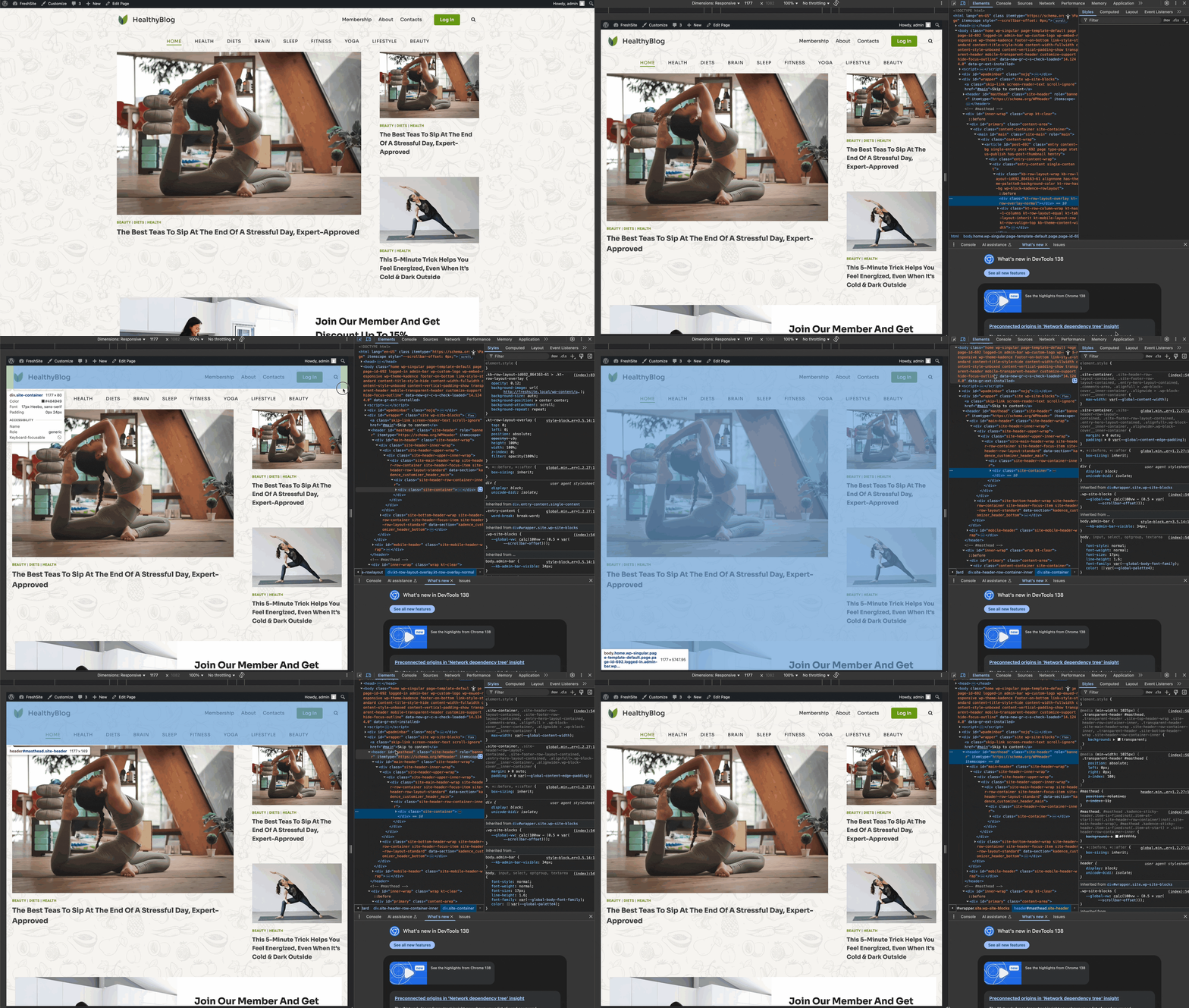
This number is important because it tells you how much top padding you’ll need to add to your content.

You can also select the header#masthead.site-header HTML element and use the computed tab of the inspector tools to see these values.

Add Padding Based on Your Setup
There are a few ways your top-level content might be set up, and the fix depends on how the page is built. The topics below will go over different ways you can add spacing to account for the Transparent Header.
Using Theme Page/Post/Archive Title (via Customizer)
If you’re using the Kadence Theme’s built-in page title (set in the Customizer), you can adjust its spacing directly:
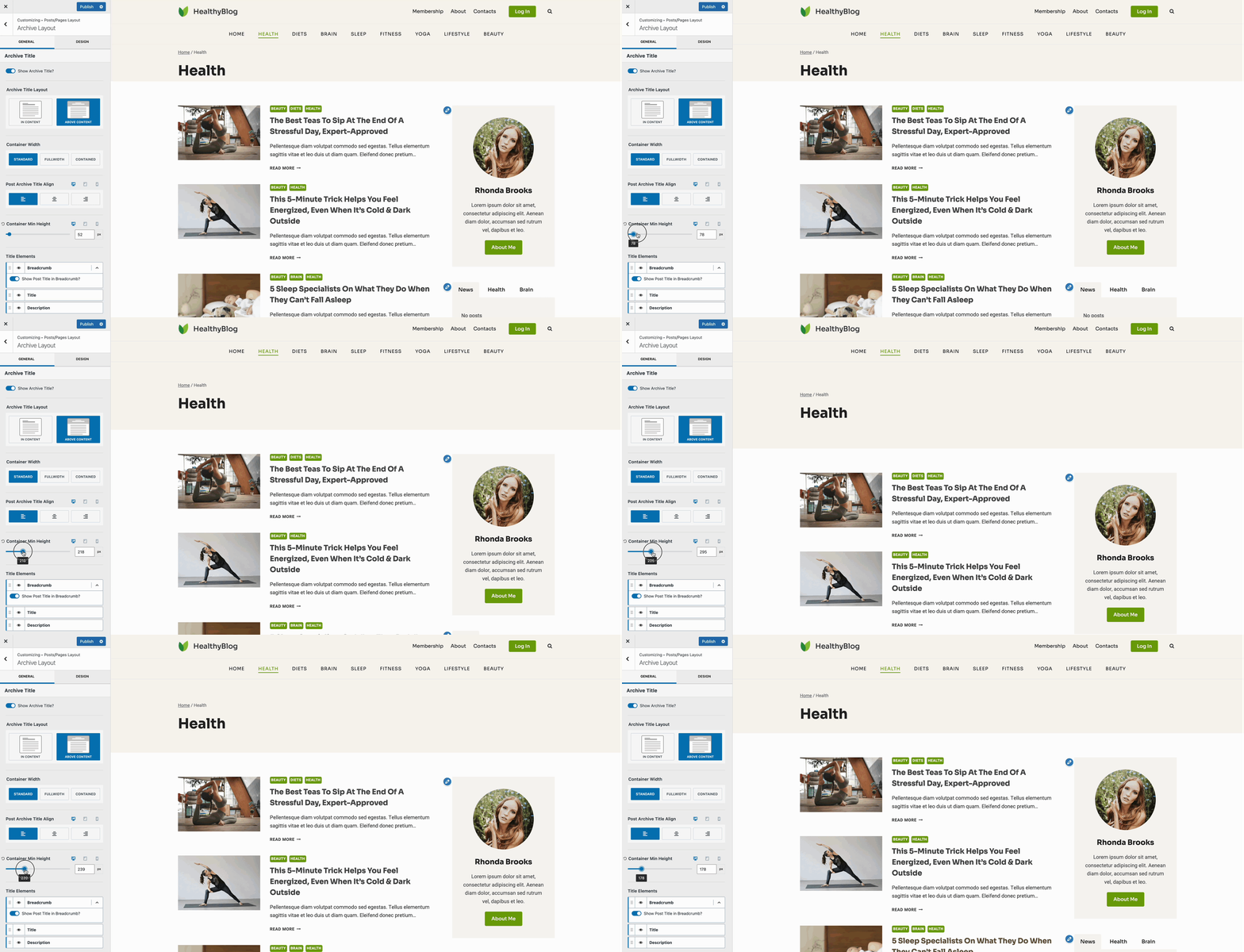
- Go to Customizer -> Post/Pages Layout. Then navigate to the appropriate page/post type.
- Look for the Container Min Height setting
- Increase the value until your title clears the Transparent Header
This is the cleanest way to add spacing globally when you’re using the default titles. This setting is only available for the Above Content Title Area.
Using In-Content Title Layouts
If you’re using an In Content title layout, you may notice spacing issues when a Transparent Header is enabled. In these cases, you have a couple of options:
- Option 1: Disable the Transparent Header on those specific pages where the In Content layout is active. This ensures your title has enough space without needing extra adjustments.
- Option 2: Use a Hooked Element (Theme Kit Pro feature) in the Content Section to manually add your own custom title layout. This gives you full control over spacing and design, allowing you to include any additional top padding needed to offset the Transparent Header.
This way, your titles remain clear, readable, and well-aligned regardless of the header setup.
Using a Hero Section Instead of Theme Titles
If your page doesn’t use a built-in page title (maybe you’re designing a custom Hero section instead), you’ll want to:
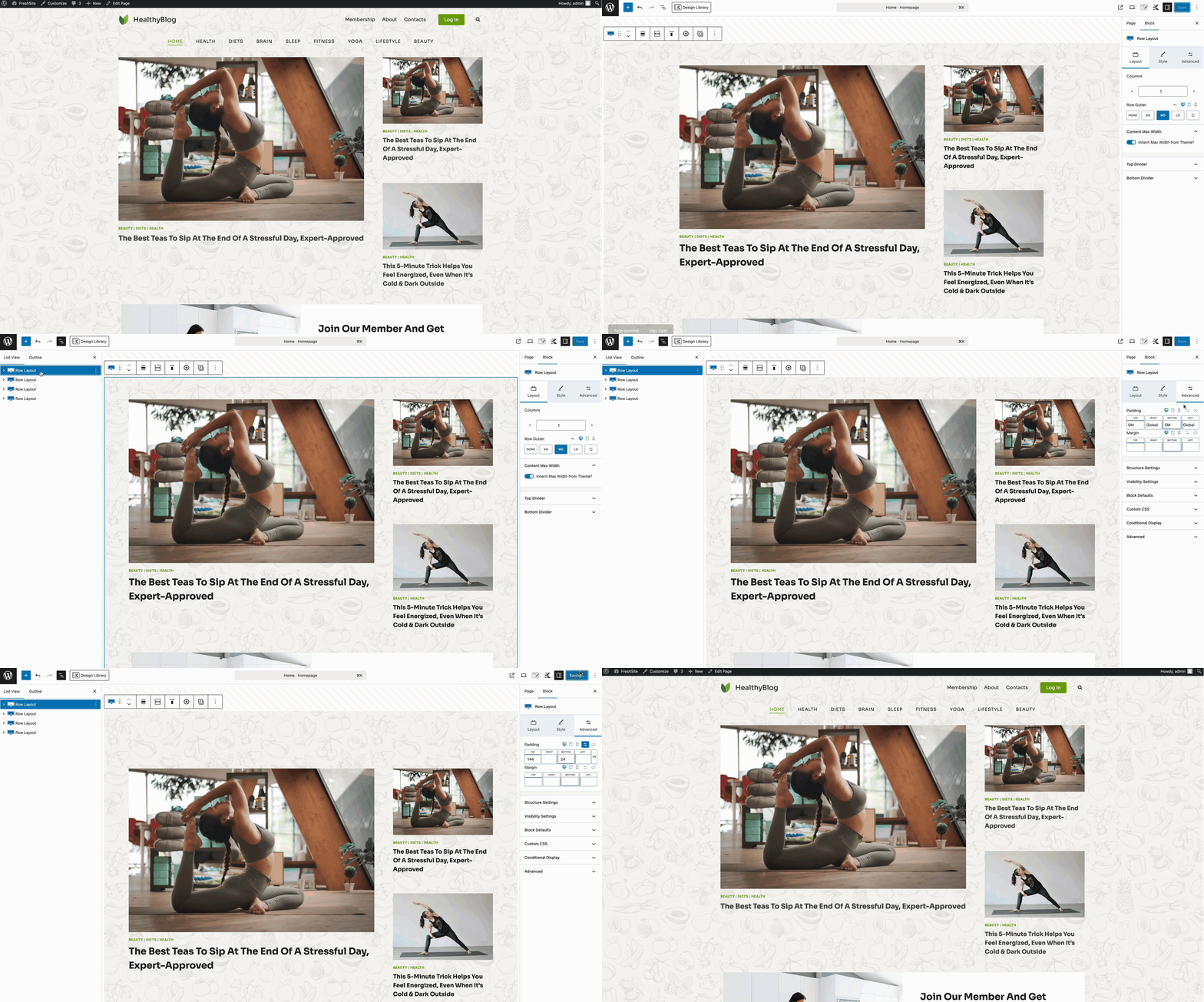
- Select your top-level block (like a Row Layout)
- Open the Block Settings panel. The padding settings are often found in the Advanced Tab of the Block Settings.
- Add Top Padding equal to or slightly more than your header height. You can use the toggle icon to manually insert a padding value.
Using a Hooked Element for Hero or Title
If you’re using a Hooked Element (from Kadence Theme Kit Pro) to add a custom title or hero section:
- Edit the Hooked Element itself
- Add top padding to the first block inside the Element to match the header height
This is especially helpful if you’re replacing the entire hero/title area or creating custom layouts across multiple pages.

You can learn more about Hooked Elements here.
Disabling the Transparent Header
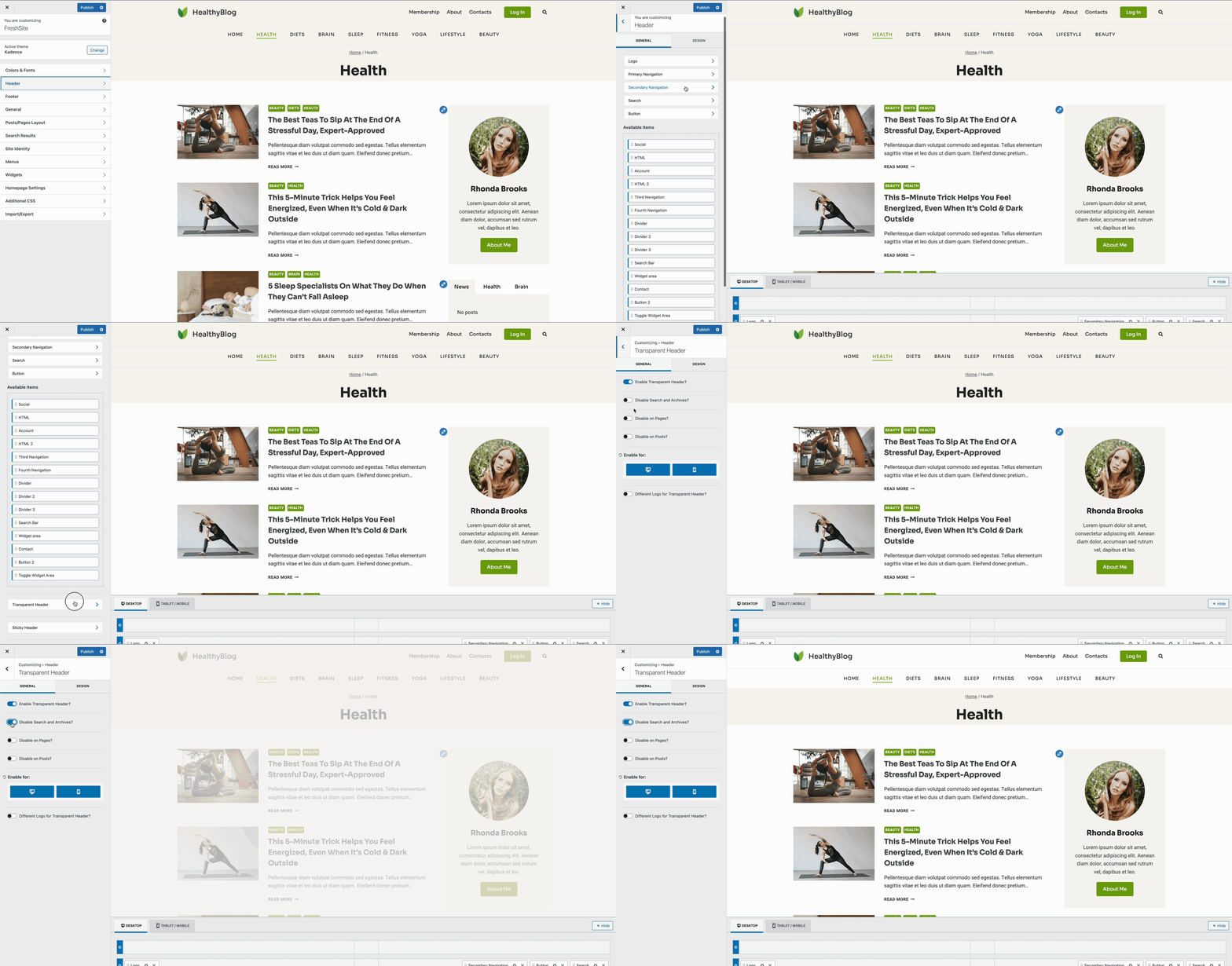
In some cases, you may need to just disable the Transparent Header for a specific page type. This can be done by going to the Customizer -> Header -> Transparent Header settings. You’ll find options to disable the Transparent Header on specific page types, such as Search and Archive pages.
If you’ve made it this far, congratulations!
Pro Tip: Whenever possible, use your browser tools to get the exact header height. This ensures your content sits nicely below the Transparent Header on all screen sizes.

